How to Actually Delete the Bloatware Your Carrier Won't Let You Touch
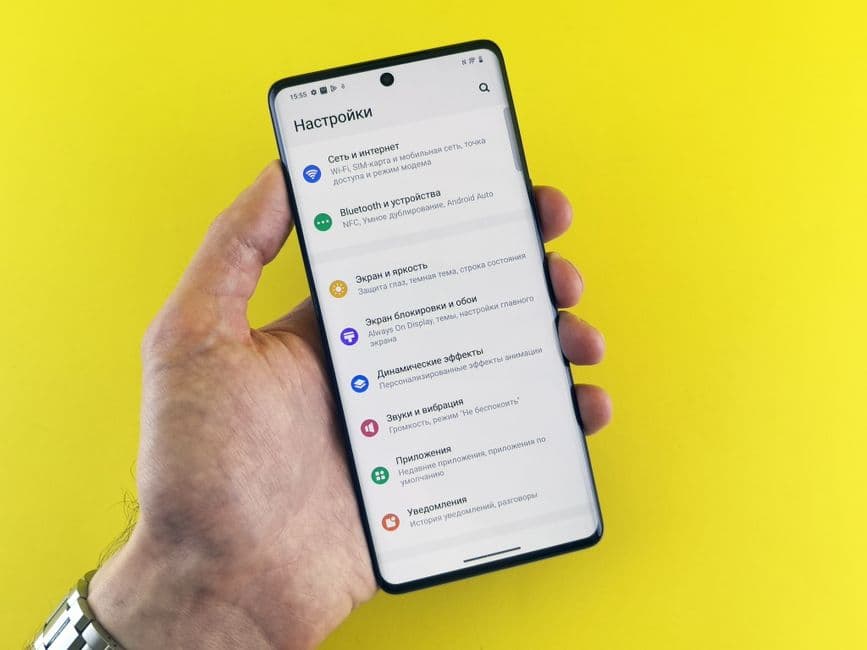
A battle-tested guide to reclaiming your phone's storage from preinstalled carrier junk, OEM duplicates, and persistent trial software.
If you buy a new laptop, you expect to spend the first twenty minutes uninstalling trial antivirus software and random casual games. In the PC world, this practice is finally getting pushback. Microsoft recently intervened with hardware partners, forcing LG to stop bundling intrusive McAfee trial advertisements on its laptops, as reported by Gizmodo.
But while the PC ecosystem is seeing some boundary lines drawn, the smartphone world remains a wild west of unwanted software.
When you unbox a brand-new Android phone, especially one purchased through a carrier, you do not actually own the storage space you paid for. Instead, you share it with stub installer apps, second-tier search engines, carrier-branded "experience" hubs, and duplicate web browsers. I spent two weeks living with a locked carrier device and an unlocked OEM device to see which of these digital hitchhikers can be kicked off your phone for good, and which ones require more technical intervention.
Here is how to reclaim your storage space, graded from the easiest methods to the advanced tools.
Level 1: The Standard Uninstall and "Disable" Trap
The easiest way to deal with an app you do not want is to long-press the icon and tap "Uninstall." For third-party games bundled by carriers during setup, this usually works.
However, you will quickly hit a wall with core carrier apps and OEM duplicates. When you try to remove a carrier account manager, a branded voicemail app, or a duplicate calendar, the "Uninstall" button is either grayed out or entirely absent. Instead, you are offered a button that says "Disable."
Disabling an app does three things:
- It hides the app icon from your app drawer.
- It prevents the app from running in the background or consuming cellular data.
- It strips away any updates, reverting the app to its factory-installed size.
What disabling does not do is free up the core storage space occupied by the app. Because these apps are installed in the device's system partition, the read-only section of your storage, the baseline files remain on your hardware. If you have a carrier app occupying space on your device, disabling it stops the annoyance, but it does not return your storage space.
On Google Pixel devices, you can disable most preinstalled Google services that you do not use. On Samsung devices, the situation is more complex. Samsung includes its own ecosystem of apps—such as the Galaxy Store, Samsung Internet, and Bixby—alongside the mandatory Google suite. Because these are deeply integrated into Samsung's One UI skin, standard Android settings will not let you disable all of them.
Level 2: The ADB Command Line Method
To truly remove system-level apps without rooting your device, you must use Android Debug Bridge (ADB). This command-line tool allows your computer to communicate directly with your phone's operating system.
This process does not delete the app from the physical storage partition—nothing can do that without root access—but it completely uninstalls the app for the "current user" (User 0). This means the app is fully removed from your operating system, cannot run, cannot update, and will not show up in any system menus.
To use this method:
- Enable Developer Options: On your phone, go to Settings > About Phone. Tap "Build Number" repeatedly until a toast notification says you are a developer.
- Enable USB Debugging: Go to the newly revealed Developer Options menu and toggle "USB Debugging" to on.
- Connect to a PC: Connect your phone to a computer using a USB cable. Download the official Android SDK Platform-Tools folder from Google's developer website.
- Open Terminal/Command Prompt: Navigate to the platform-tools folder on your computer, open a terminal window, and type
adb devicesto verify your phone is connected. You will need to authorize the connection on your phone screen. - Find the Package Name: You need the exact package name of the app you want to remove (for example, Samsung's default browser is
com.sec.android.app.sbrowser). You can find these names using free package viewer apps in the Google Play Store. - Run the Uninstall Command: Type the following command and press Enter:
adb shell pm uninstall -k --user 0 <package_name>
If successful, the terminal will return the word "Success." The app is now completely gone from your user profile. If you ever make a mistake and accidentally uninstall a vital system service, you can restore it by performing a factory reset, which repopulates the user partition from the read-only system partition.
Level 3: Shizuku and On-Device Debloating
If you do not want to tether your phone to a computer every time you want to clean up your app drawer, you can use an advanced system utility called Shizuku.
Shizuku allows third-party modification apps to access Android's system APIs directly on the device by utilizing the Wireless Debugging feature introduced in modern Android versions.
Once Shizuku is running via your local Wi-Fi connection, you can pair it with open-source package managers like Canta. This setup allows you to scroll through a list of every single application installed on your phone—including hidden background services—and uninstall them with a single tap. Canta even categorizes apps to warn you which packages are safe to remove and which ones are critical to keeping your phone operational, reducing the risk of boot loops.
The Carrier Loophole to Watch Out For
Even if you successfully strip your phone of unwanted software, carrier-locked devices have a habit of quietly reinstalling bloatware during system updates. Carriers use services like Mobile Services Manager (often listed in your apps as DTIGN or AppSelector) to silently download promoted games and utility apps in the background.
If you want your cleanup to last, your very first step using the ADB or Shizuku methods should be to locate and uninstall these installer managers. Removing the source prevents the carrier from pushed installations down the line, keeping your phone clean, fast, and actually yours.